Brimlet
Music, a timer and your next meeting, right in your MacBook’s notch.
Brimlet turns the black strip around your MacBook’s notch into a small, quiet panel that opens when you point at it.
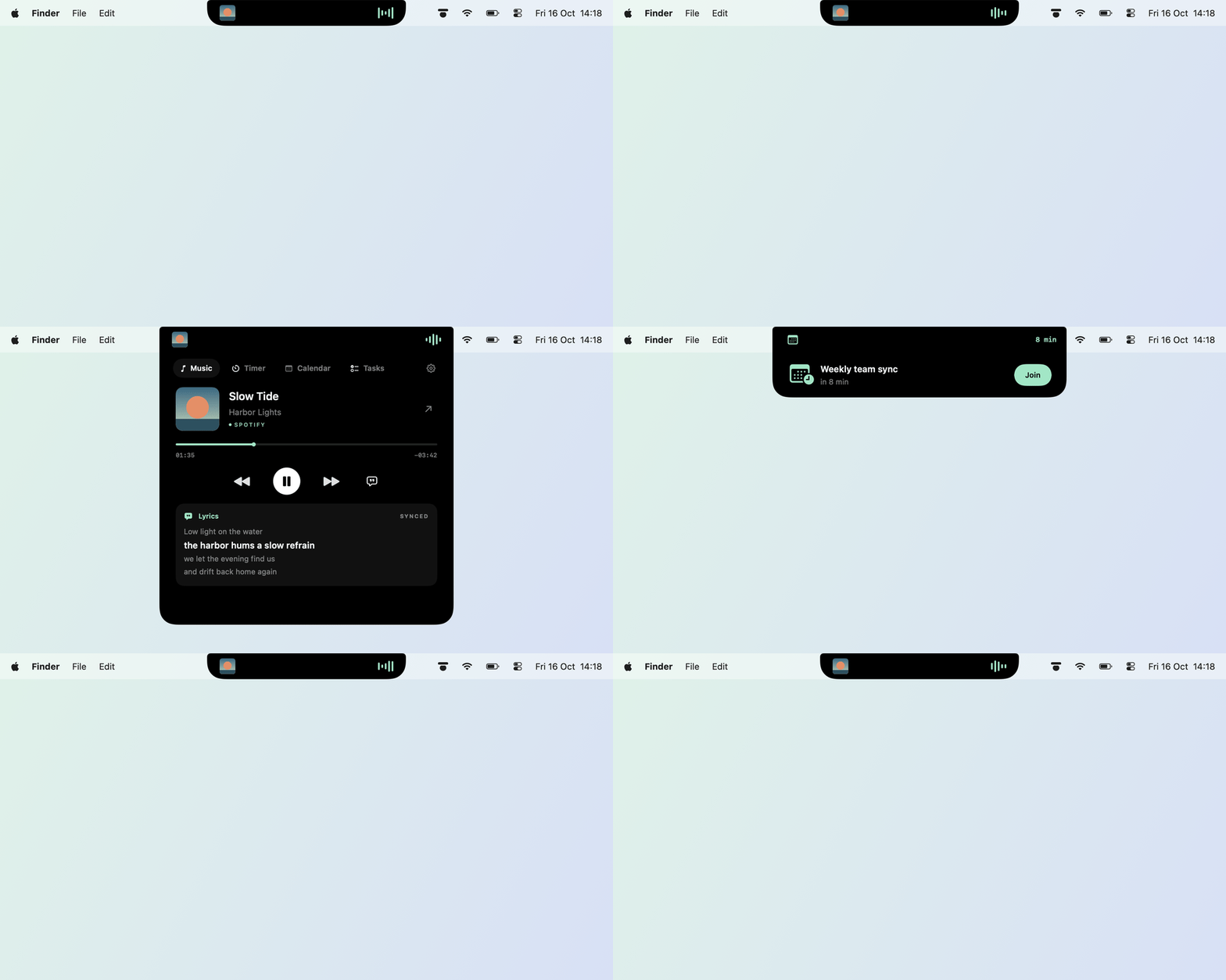
Music in the notch.
Point at the notch to see the track playing in the Spotify app, with its album art, a seek bar and the controls.

-
From the Spotify app
Track, artist and album art, a seek bar, play/pause, previous and next.
-
Synced lyrics
Lyrics for the current track, synced line by line where available.
-
Any display
On displays without a notch, Brimlet sits at the top of the screen as a small capsule. It can live on any display.
Peeks out, then gets out of the way.
Brimlet peeks out of the notch when the track changes, and reminds you 5 or 10 minutes before a meeting.


-
Join from the notch
A Join button for Google Meet, Zoom, Teams and Webex links.
-
Notifications from other apps
From the apps you allow, through a small local interface for developers.
-
Stays out of the way
Expands on hover or click, follows Reduce Motion and hides when an app fills the screen.
Timer, calendar and tasks.
Turn each module on or off and change their order in Settings › Modules.


-
Timer
5, 15, 25 or 45 minutes, with pause and a sound when time is up. It stays right through sleep.
-
Calendar
Today, tomorrow or the next seven days from the calendars on your Mac. Read only, and off until you turn it on.
-
Tasks
A short list for home, personal and work, with due dates and a reminder at 9:00 on the day.
-
Quotes
Select text in most apps, choose Services › Add to Brimlet as Quote, and Brimlet shows one of your quotes now and then.
-
Made for the Mac
Native SwiftUI and AppKit, in English and Turkish.
Privacy
Nothing goes to a server of ours.
Brimlet has no account and no telemetry. It makes three kinds of requests, and this is all of them.
-
Three kinds of requests
The album art of the current track, from the address Spotify gives for it. The lyrics of the current track from LRCLIB, only while lyrics are open: Brimlet sends the title, artist and length of the track. The latest version number from GitHub, once a day.
You can turn the version check off in Settings › General › Check for updates automatically. An update is downloaded only when you click Download and Install.
-
Your calendar, read only
Calendar events are read when shown and never stored or changed.
-
Stored on your Mac
Settings, tasks and quotes are in
~/Library/Preferences/com.hamzabasaran.brimlet.plist.~/Library/Application Support/Brimletholds only the local connection for notifications from other apps.
Install
A regular Mac app in a disk image. No installer, no account.
-
Download
Download Brimlet.dmg from the latest release on GitHub.
-
Drag it to Applications
Open the disk image and drag Brimlet to Applications.
-
Open it from Applications
Eject the disk image, then open Brimlet from Applications, not from the disk image.
The first time, macOS asks you to confirm
Brimlet isn’t notarized by Apple yet, because that needs a paid developer account. So macOS holds back the first launch until you allow it. You do this once per download.
- macOS says it could not verify Brimlet. Click Done.
- Open System Settings › Privacy & Security, scroll down to “Brimlet” was blocked, click Open Anyway and confirm.
On macOS 14 you can instead Control-click Brimlet in Applications and choose Open.
-
Find it at the notch
Brimlet opens at the notch and puts its icon in the menu bar.
Music and permissions
For music, install the Spotify app for Mac and click Connect to Spotify. macOS asks whether Brimlet may control Spotify; allow it. Brimlet talks to the Spotify app on your Mac, not to your Spotify account, so the web player does not work with it.
macOS asks for permission only when a feature needs it:
| Permission | When |
|---|---|
| Automation › Spotify | You click Connect to Spotify |
| Calendars (full access) | You turn on the calendar module |
| Notifications | You set a reminder on a task |
To start Brimlet when you log in, turn on Settings › General › Open at Login.
Using Brimlet
Everything happens at the notch and in the menu bar.
| Where | What happens |
|---|---|
| Point at the notch, or click it | Brimlet opens |
| Move away, click elsewhere or press Esc | Brimlet closes |
| The tabs at the top | Switch between the modules: Music, Timer, Calendar and Tasks |
| The small view | Shows what is going on, such as a playing track, a running timer or a meeting about to start |
| The menu bar icon | Opens Brimlet, hides or shows it, and opens Settings |
Settings
- Modules
- Turn music, timer, calendar and tasks on or off and change their order, track change peeks, the timer sound, the calendars to show and their reminders, and apps allowed to show notifications.
- Appearance
- The display Brimlet lives on, expand on hover, hide in full screen.
- General
- Open at login, updates and what Brimlet sends where.
- Quotes
- How often a quote appears, how long it stays, and your saved quotes.
Updates and help
Brimlet checks for a new version once a day. When one is out, its menu bar menu starts with Update to and the version number, and Download and Install in Settings › General verifies the disk image, opens it and quits Brimlet so you can replace the old version.
- Changelog What changed in each version.
- Uninstall Remove the app, its settings and its permissions.
- Issues Report a bug or suggest an idea on GitHub.
- Ko-fi Brimlet is free. If it makes your day a little nicer, you can buy me a coffee.
Brimlet is free and open source under the MIT license. Made by Hamza Başaran in Germany.