Paravent
Tuck away the menu bar icons you don’t need, and keep them a hover away.
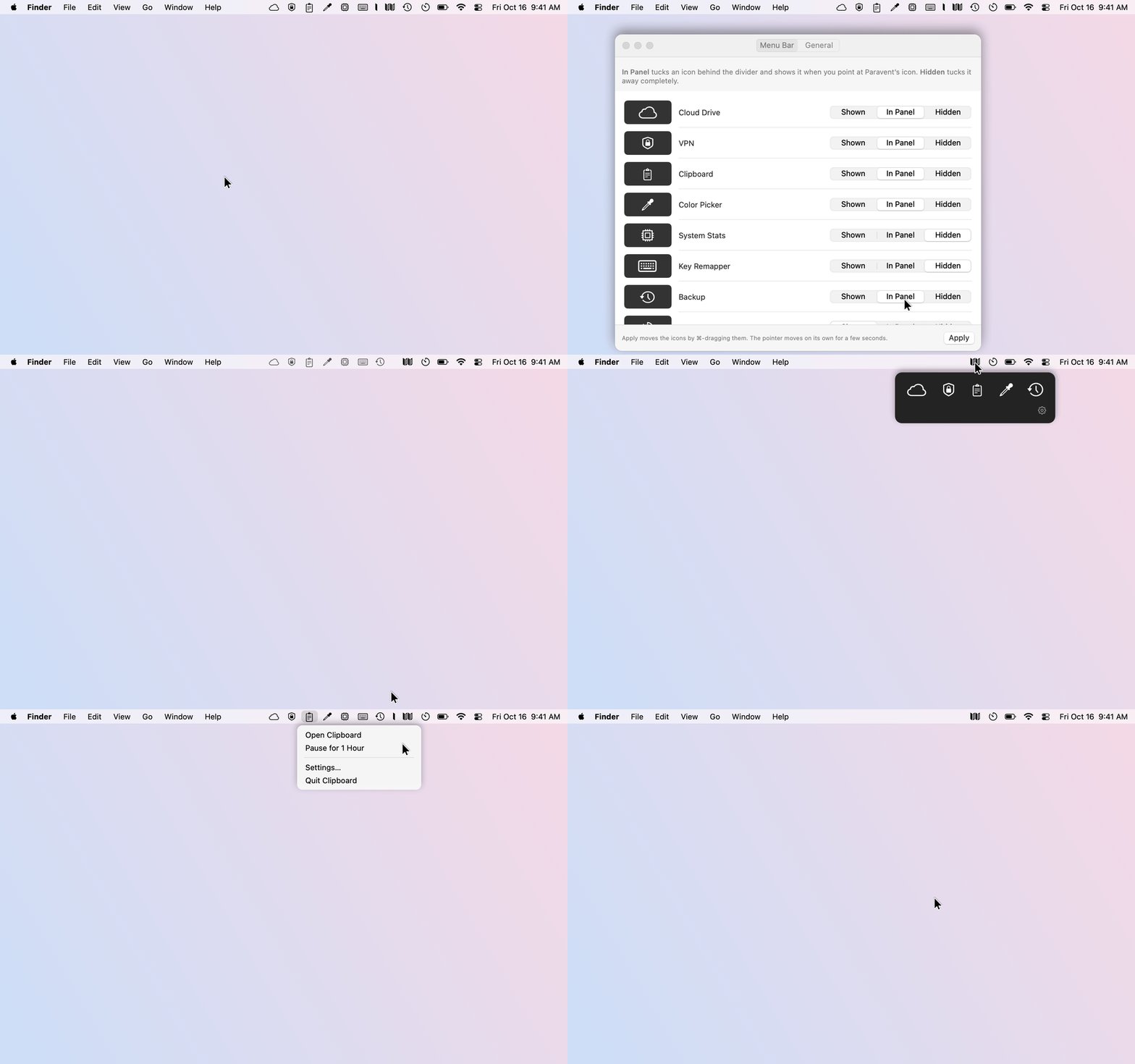
Paravent puts a divider in your menu bar: the icons left of it are tucked away, the rest stay where they are.
A tidy menu bar.
Icons left of the divider are tucked away. The clock, Control Center and the icons you want stay in view.


-
Shown
The icon stays in the menu bar.
-
In Panel
Behind the divider and one hover away.
-
Hidden
Tucked away entirely.
One hover away.
Point at Paravent’s icon and the tucked-away icons appear in a small panel. Click one and its menu opens right where it belongs.


-
Back just long enough
Paravent brings the icon back just long enough for its menu, then tucks it away again.
-
Keep it open
Click Paravent’s icon to keep the panel open until you click elsewhere.
-
Show Hidden Icons
Opens the divider until you choose Hide Icons Again.
Apply arranges the bar for you.
In Settings › Menu Bar, set each icon to Shown, In Panel or Hidden and click Apply. Paravent ⌘-drags each icon to its side of the divider.

-
Hands off for a moment
The pointer moves on its own for a few seconds, so leave the mouse alone until it is done.
-
Or do it yourself
Hold ⌘ and drag icons left or right of the divider, as you would move any menu bar icon.
-
Made for the Mac
Native SwiftUI and AppKit, light and dark, English and Turkish.
Privacy
Nothing about you leaves your Mac.
Paravent has no telemetry and sends nothing about you or your Mac anywhere. It uses its two permissions only for the menu bar.
-
No telemetry, one version check
Paravent’s only network request asks GitHub for the latest version number, once a day.
You can turn it off in Settings › General › Check for updates automatically. An update is downloaded only when you click Download and Install.
-
Permissions, used narrowly
Screen Recording is used only for pictures of the menu bar icons, never for the rest of the screen. Accessibility is used only for the menu bar.
-
Stored on your Mac
Your choices, the icon pictures and a short diagnostic log with the names of the icons Paravent moved are in
~/Library/Application Support/Paravent.The positions of Paravent’s own items and the update settings are in
~/Library/Preferences/com.hamzabasaran.paravent.plist.
Install
A regular Mac app in a disk image. No installer, no account.
-
Download
Download Paravent.dmg from the latest release on GitHub.
-
Drag it to Applications
Open the disk image and drag Paravent to Applications.
-
Open it from Applications
Eject the disk image, then open Paravent from Applications, not from the disk image.
The first time, macOS asks you to confirm
Paravent isn’t notarized by Apple yet, because that needs a paid developer account. So macOS holds back the first launch until you allow it. You do this once per download.
- macOS says it could not verify Paravent. Click Done.
- Open System Settings › Privacy & Security, scroll down to “Paravent” was blocked, click Open Anyway and confirm.
-
Allow two permissions
In System Settings › Privacy & Security, turn Paravent on under Accessibility and under Screen Recording, and choose Quit & Reopen when macOS offers it.
Paravent needs Accessibility to read, press and move menu bar icons, and Screen Recording to show pictures of them in its panel.
-
Find it in the menu bar
Paravent lives in the menu bar, next to the system icons: the folding screen is Paravent, the single leaf to its left is the divider.
Open at login
To start Paravent when you log in, turn on Settings › General › Open at login.
Using Paravent
Right-click Paravent’s icon and choose Settings…, or open Paravent again from Applications.
| In the menu bar | Action |
|---|---|
| Point at Paravent’s icon | Open the panel with the icons set to In Panel |
| Click Paravent’s icon | Keep the panel open until you click elsewhere |
| Click an icon in the panel | Open that app’s menu in the menu bar; the icons tuck away again when it closes |
| Right-click Paravent’s icon | Settings…, Show Hidden Icons / Hide Icons Again, Check for Updates…, Quit Paravent |
| ⌘-drag an icon across the divider | Tuck it away or bring it back |
Settings
- Menu Bar
- Every icon with its choice, and Apply.
- General
- Open at login and updates.
The clock and Control Center can’t be moved or hidden.
Updates and help
Paravent checks for a new version once a day. When one is out, the panel and the right-click menu show Update to and the version number, and Download and Install in Settings › General verifies the disk image, opens it and quits Paravent so you can replace the old version.
- Changelog What changed in each version.
- Uninstall Remove the app, its settings and its permissions. The tucked-away icons come back on their own.
- Issues Report a bug or suggest an idea on GitHub.
- Ko-fi Paravent is free. If it keeps your menu bar tidy, you can buy me a coffee.
Paravent is free and open source under the MIT license. Made by Hamza Başaran in Germany.